Play Training
Target Geography
Number of Guide Steps: 4
In the expansive landscape of geo-targeted advertising, Vision VX stands out by offering a versatile array of targeting options, accommodating various geo types to cater to the diverse needs of advertisers.
This includes the ability to target by city, county, zip code, DMA (Designated Market Area), state, or country.
Moreover, the platform seamlessly integrates the powerful feature of geo-fencing through its intuitive Locations and Radius selections, enhancing the precision and scope of geographic targeting.
- 1. Select a Geoprofile
- 2. Or, Add Geo Type
- 3. Search and Add Geo Area
- 4. Use the Interactive Map:
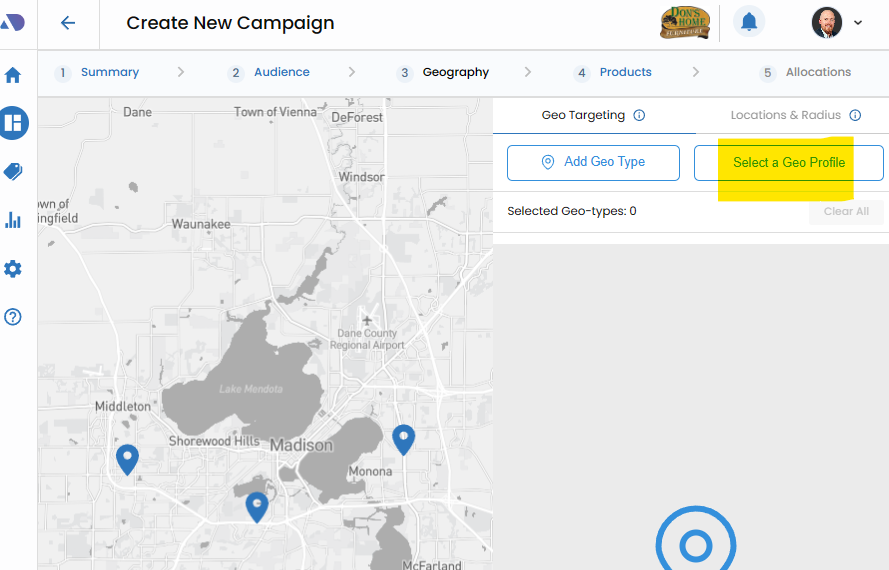
Select a Geoprofile.
Begin by choosing a geoprofile from the Select a Geoprofile menu. This menu provides access to previously configured geo profiles within a client dashboard.
Selecting a pre-defined geoprofile streamlines the targeting process and ensures consistency with the desired geographic parameters.
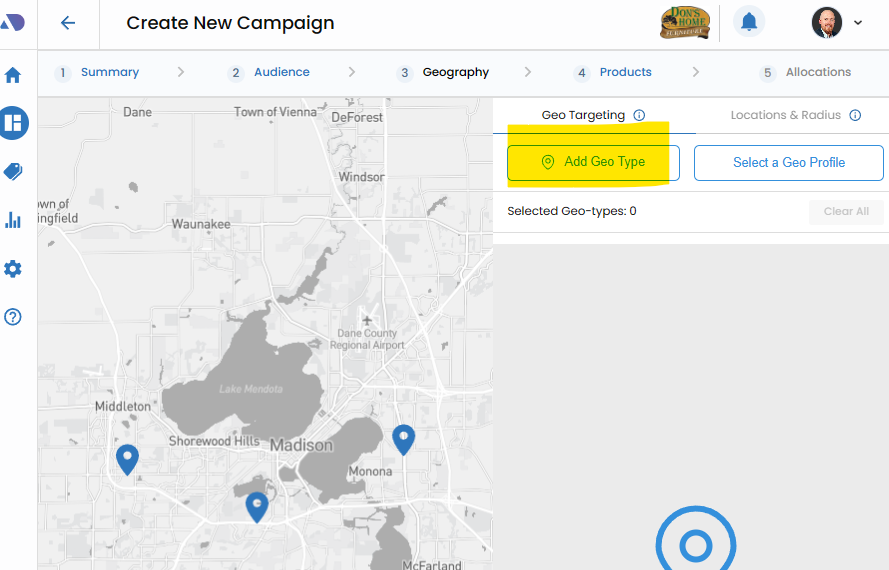
Or, Add Geo Type.
Alternatively, users have the flexibility to configure a custom geographic area by utilizing the Add Geo Type button. This feature allows for a tailored approach to defining specific geographic boundaries that align with campaign objectives.
Search and Add Geo Area.
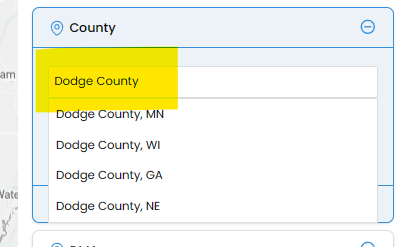
For a more targeted and precise selection, users can employ the Search area of the Geo area feature.
By typing in relevant location details, the platform provides suggestions, allowing users to select the correct match. This method ensures accuracy in geo-targeting by leveraging a dynamic search functionality.
Use the Interactive Map:.
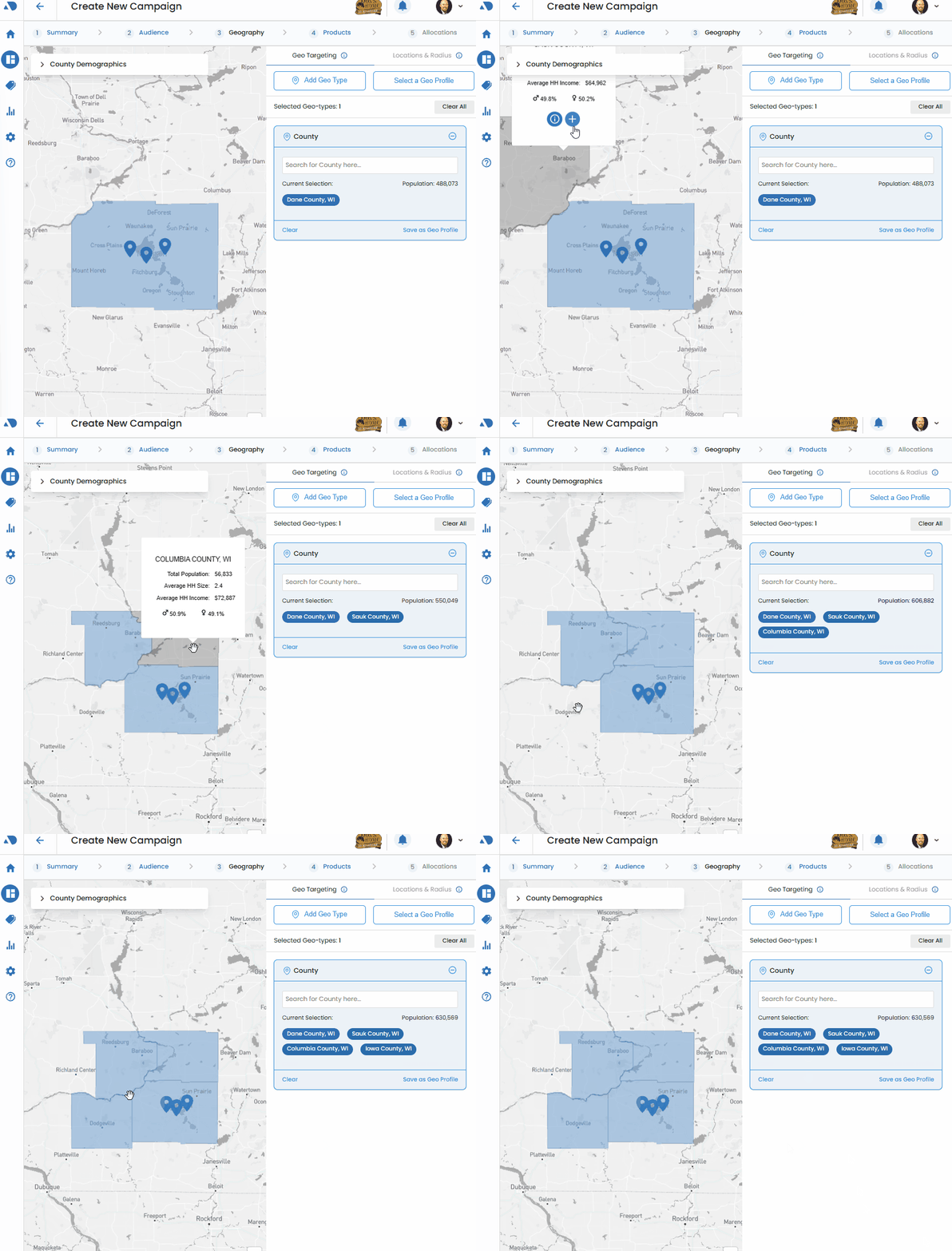
Vision VX enhances user experience with an interactive map feature that facilitates the addition or modification of geo areas.
Clicking on an open space on the map reveals the geo area beneath that location. A single click displays the geo area, while a second click reveals the Plus symbol, allowing users to seamlessly add the selected area to the geo list.
This interactive map feature provides a visual and intuitive method for refining and customizing geographic targeting.